Examples
The repository includes eight example documents, each written twice: once as a Blade view and once in plain PHP. Compare the two to see how Blade tags map to the PHP API. The invoice, transcript, integration guide and certificate use US Letter and inches; the report, form responses, knowledge base article and academic paper use A4 and millimeters.
| Document | What it shows | Blade | PHP |
|---|---|---|---|
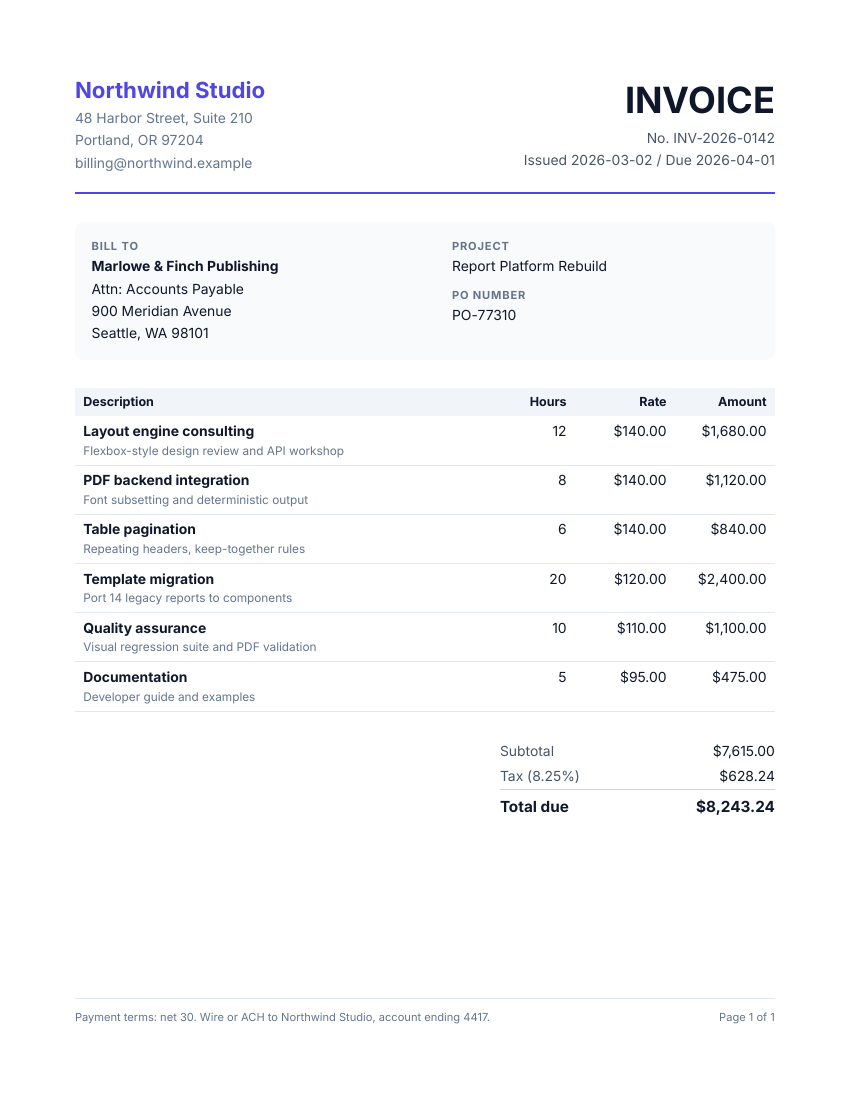
| Invoice | a letterhead row, a tinted panel, line items, right-aligned totals, a footer | invoice.blade.php | invoice.php |
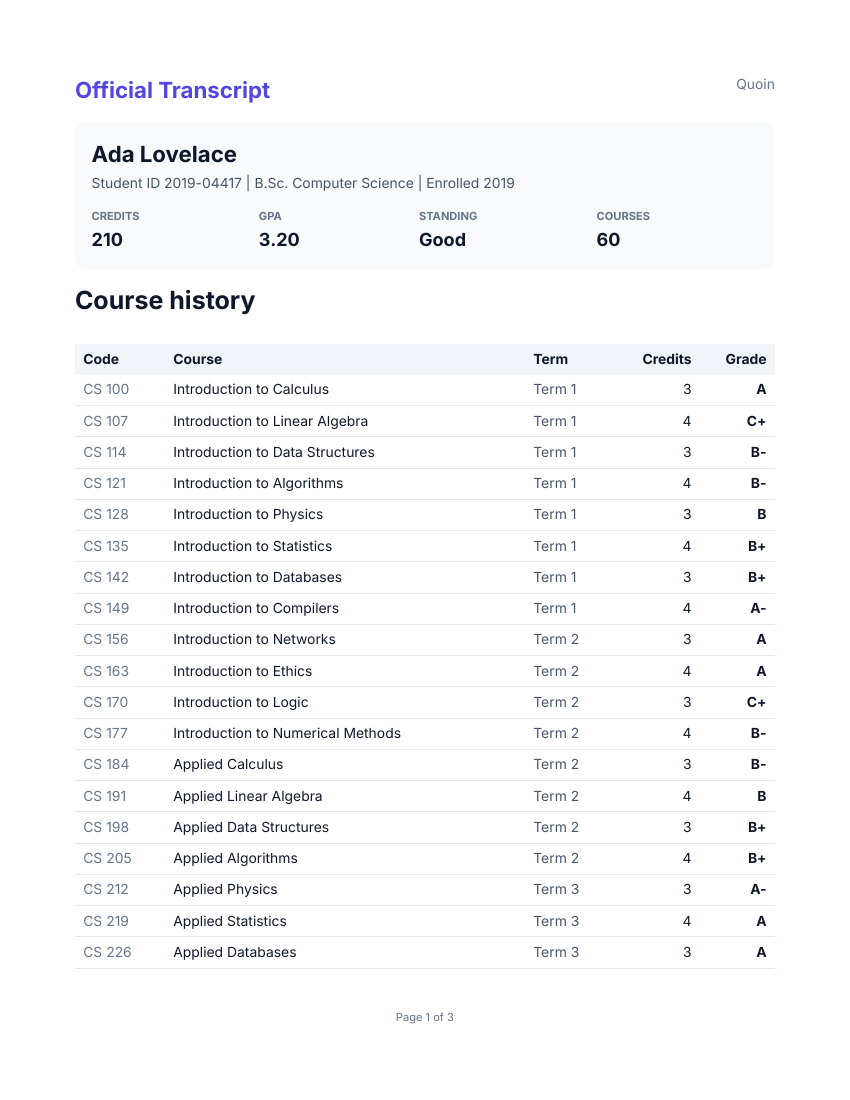
| Transcript | a sixty-row table across pages with its header repeated, keep-together blocks | transcript.blade.php | transcript.php |
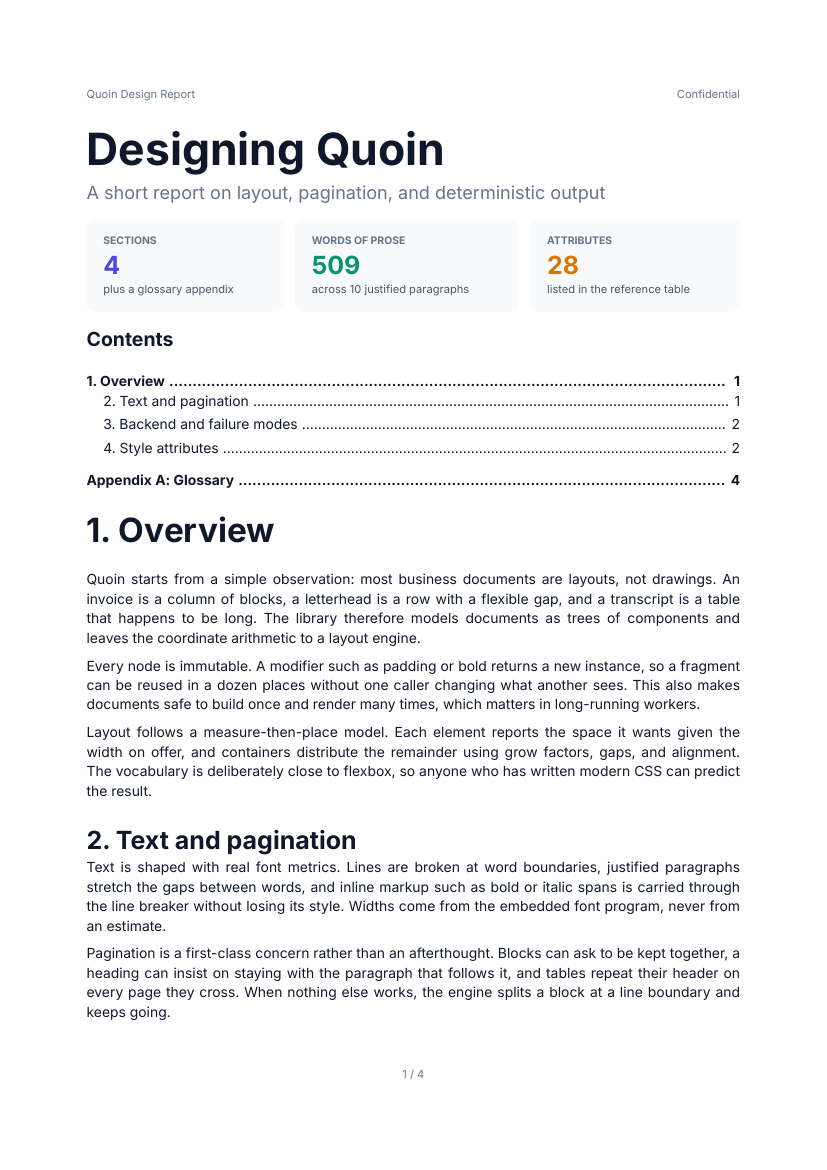
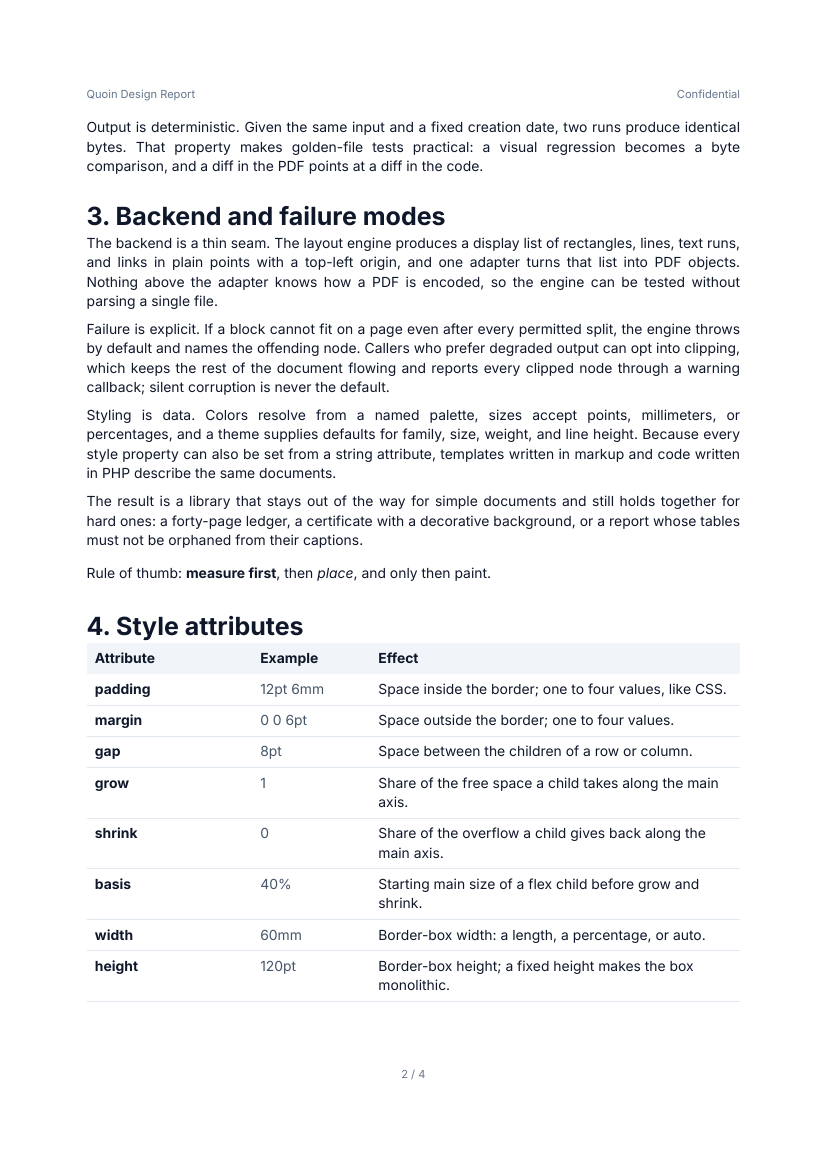
| Report | justified prose, stat cards from an app component, an eighty-row table, a forced page break | report.blade.php | report.php |
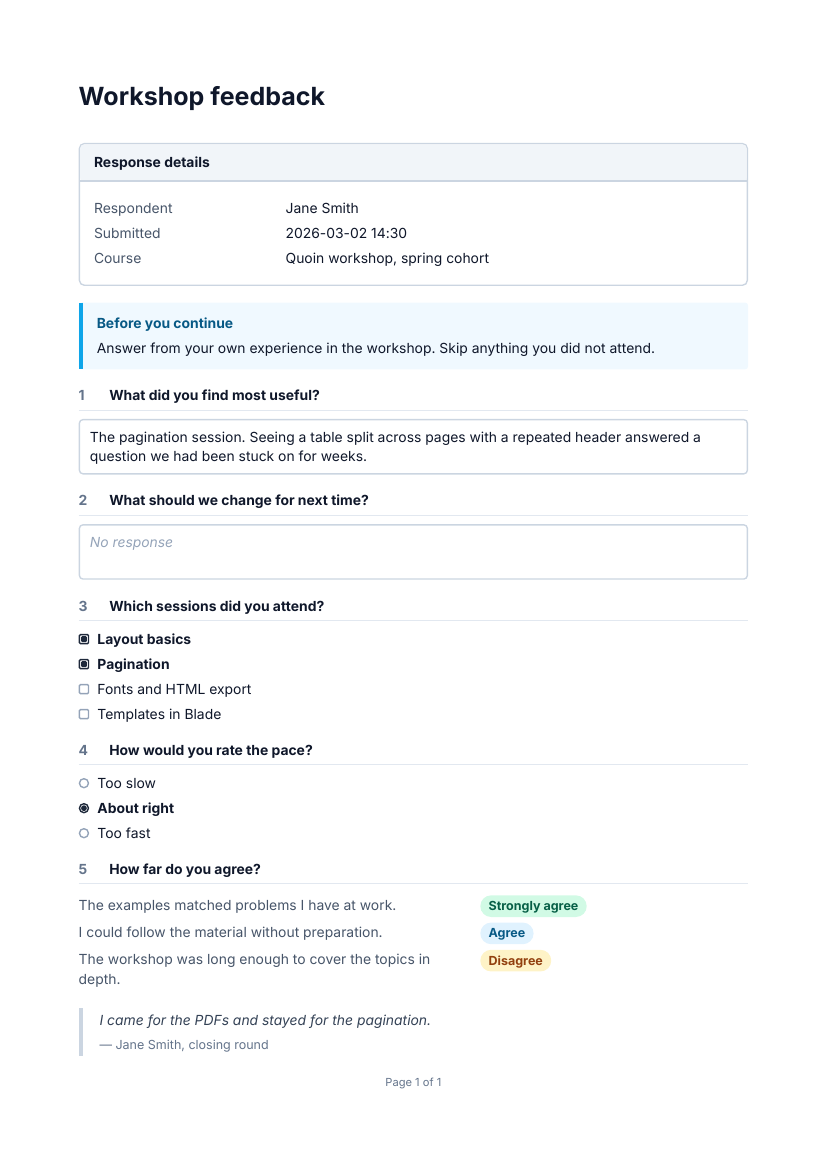
| Form responses | eight of the decorators: a card of details, a callout, numbered sections, fields, choice lists, rated statements with badges, a blockquote | responses.blade.php | responses.php |
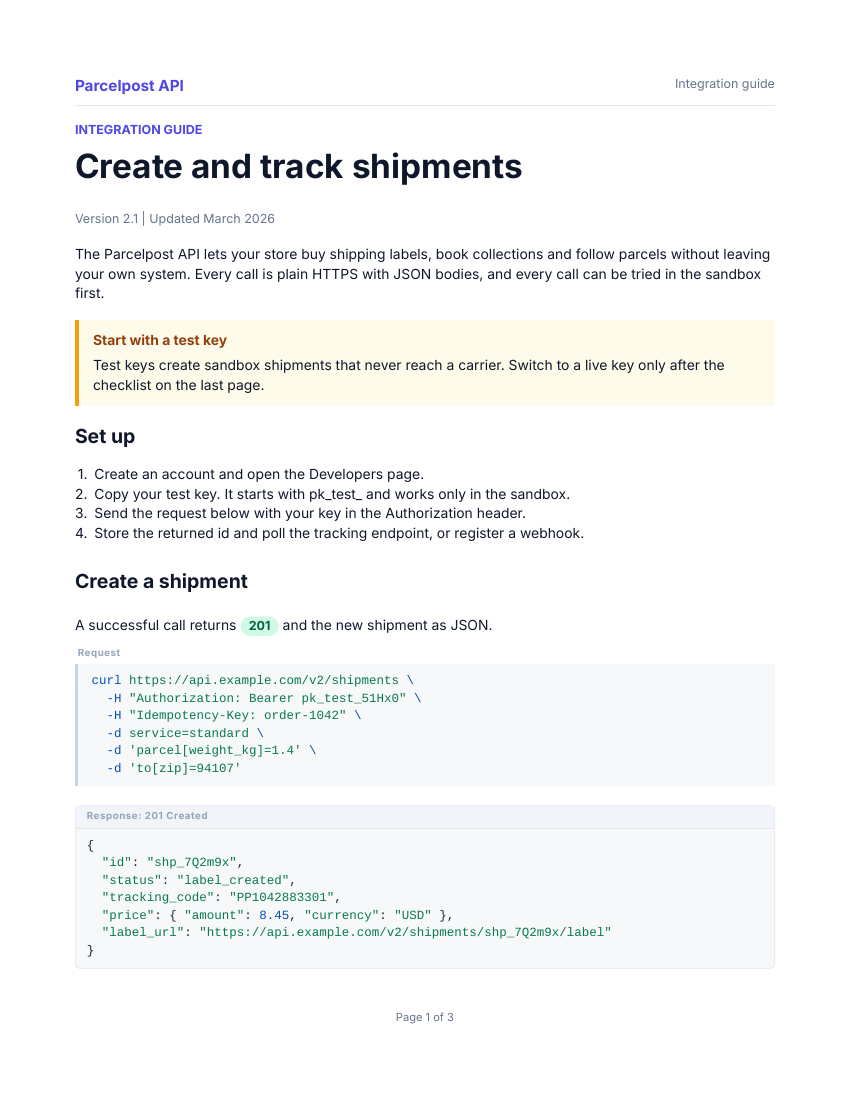
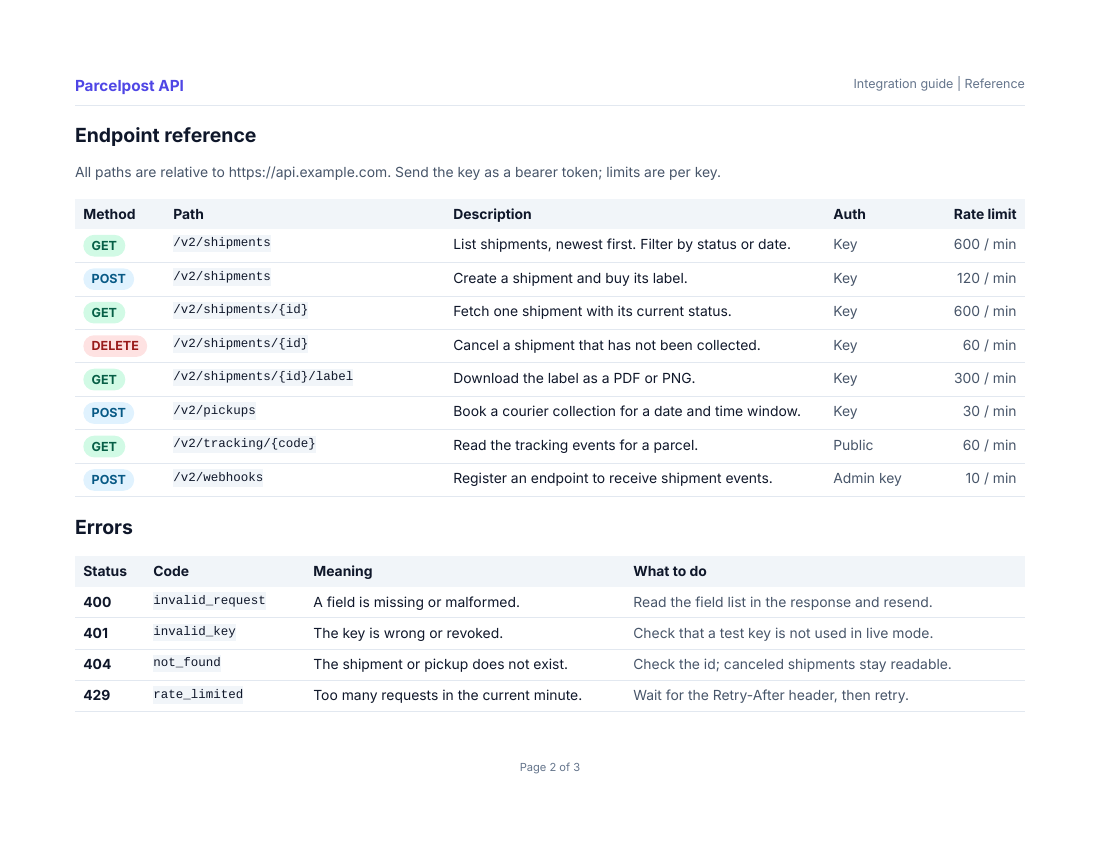
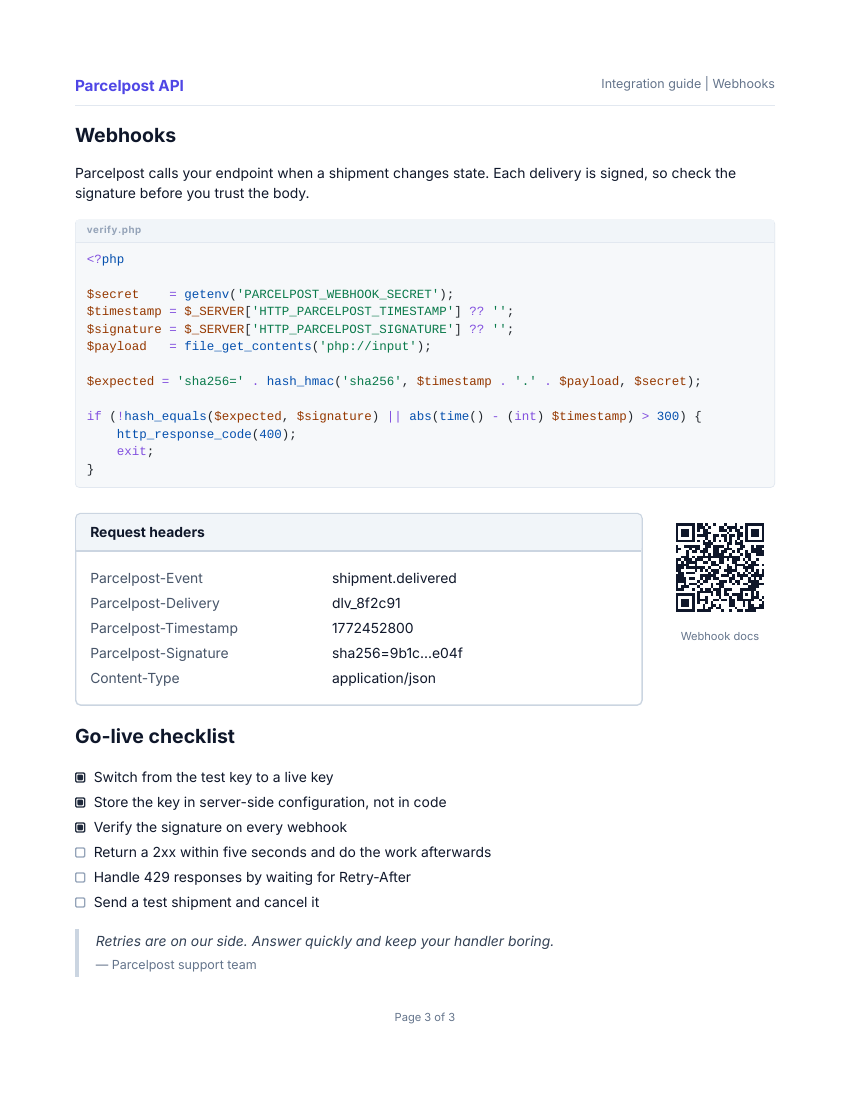
| Integration guide | portrait, landscape and portrait pages in one document, highlighted code blocks, method badges, a QR code, a checklist | guide.blade.php | guide.php |
| Certificate | a page template: a name, course and date placed on a blank PDF, and a signature image on the signature line. PDF only | certificate.blade.php | certificate.php |
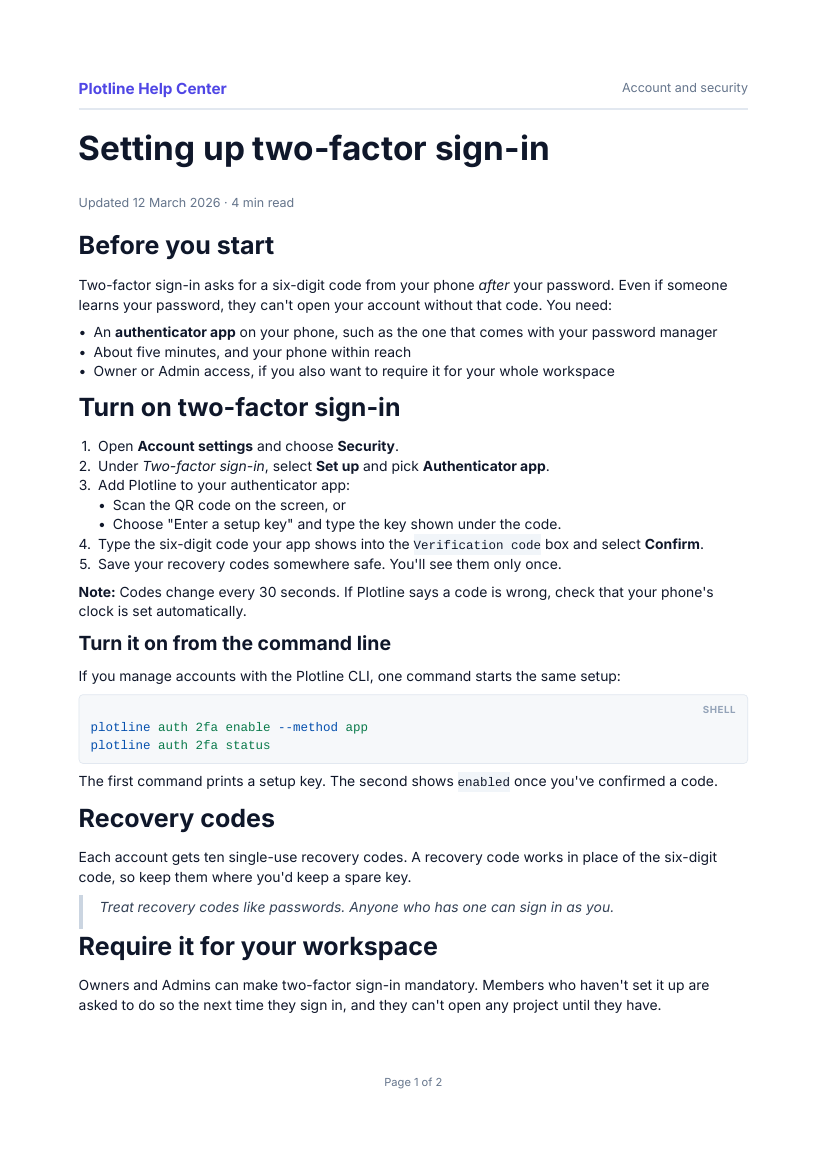
| Knowledge base article | HTML from a rich text editor, converted by Markup: headings, a nested list, a table, a highlighted code block, a quotation | article.blade.php | article.php |
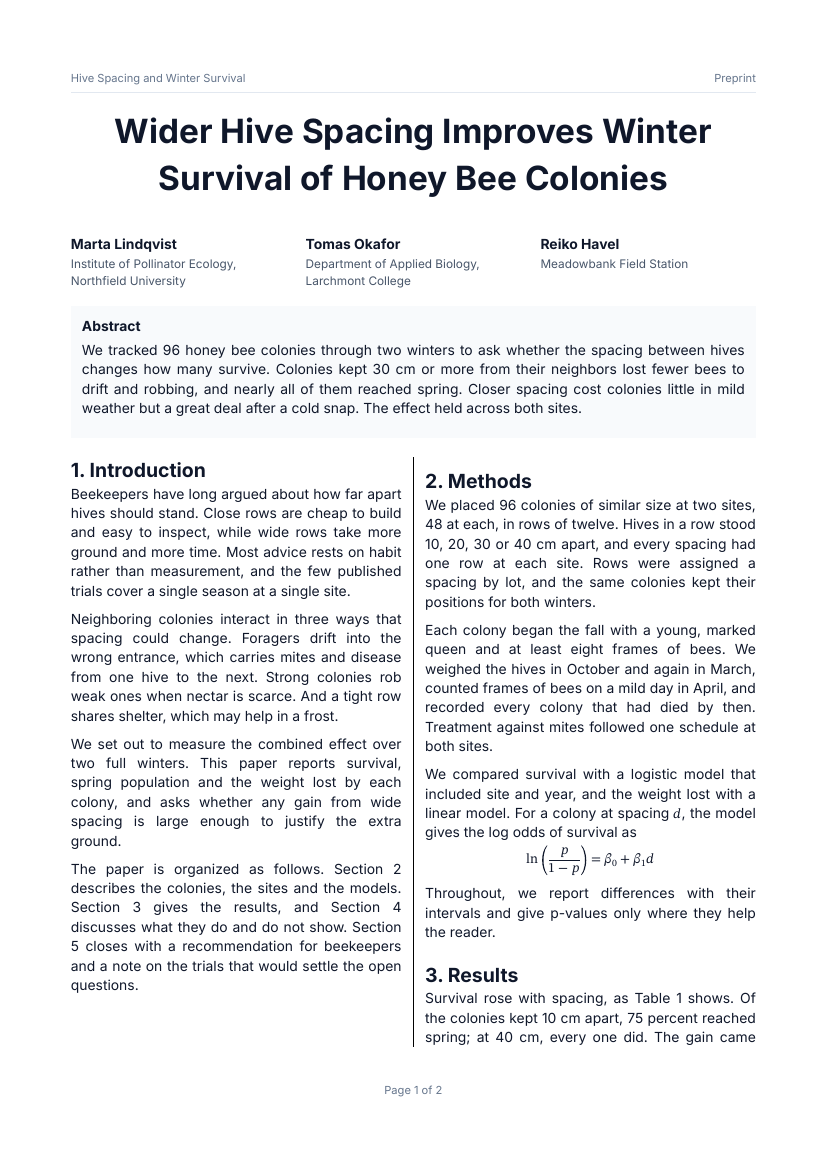
| Academic paper | a full-width title, authors and abstract, then a body in two columns with a table, a figure and equations (displayed and inline, a sum with limits, and a formula read from MathML) that ends level, and a full-width closing note | paper.blade.php | paper.php |
What they look like
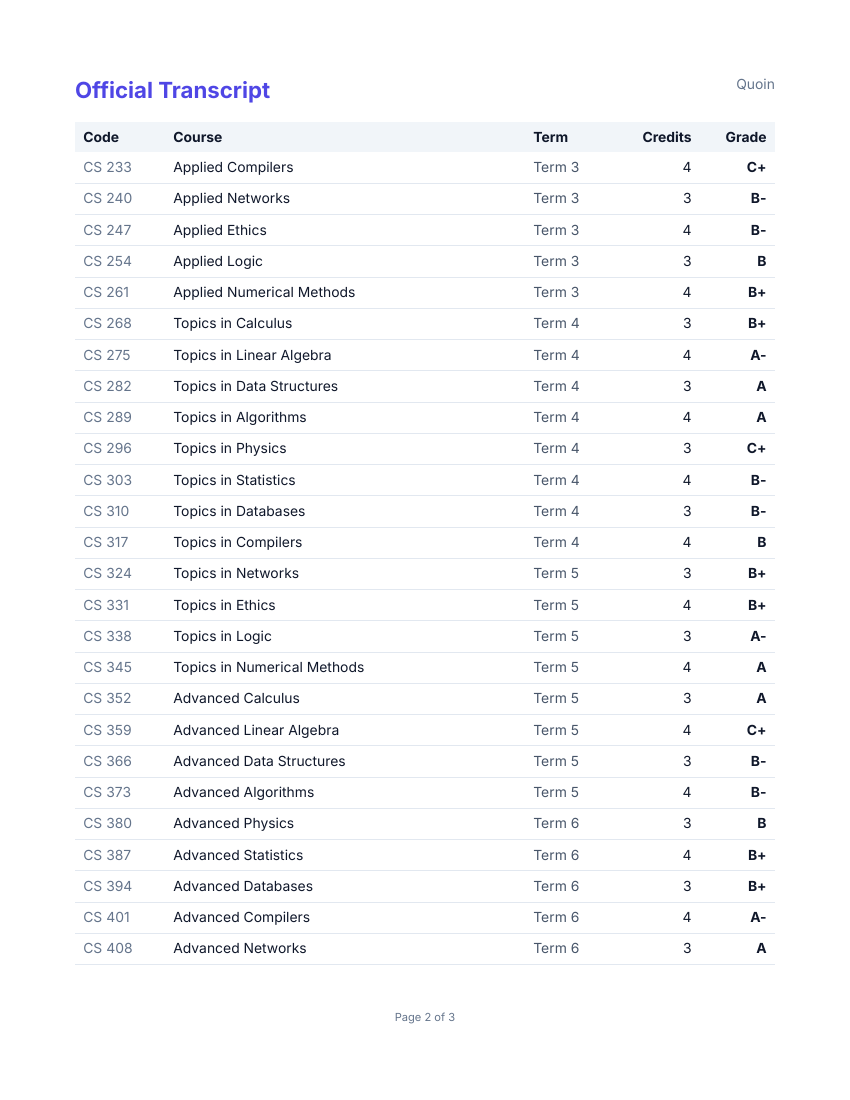
Each card shows the PDF. Download the Word file to see the same document as editable text in Word, LibreOffice or Google Docs.


Running them
From a checkout, install the dependencies for the package you want to try, then run the scripts from the repository root.
# Plain PHP: writes examples/core/<name>.pdf
(cd packages/core && composer install)
php examples/core/invoice.php
php examples/core/transcript.php
php examples/core/report.php
php examples/core/responses.php
php examples/core/guide.php
php examples/core/certificate.php
php examples/core/article.php
php examples/core/paper.php

# The same documents as HTML (all but the certificate): writes examples/html/<name>.html
php examples/html/render.php

# The same documents as Word (all but the certificate): writes examples/docx/<name>.docx
(cd packages/docx && composer install)
php examples/docx/render.php

# Blade: writes examples/laravel/<name>.pdf and .html
(cd packages/laravel && composer install)
php examples/laravel/render.php
The Blade script starts a temporary Laravel app with Orchestra Testbench, so you don't need a full Laravel install. The sample data for the views is in examples/laravel/data.php.
The form responses example
This example builds something specific to an app from the decorators. The decorators know nothing about questions or answers; the view loops over the items and picks a decorator for each:
@foreach ($items as $item)
  @if ($item['type'] === 'instruction')
    <x-doc::callout type="note" :title="$item['prompt']">{{ $item['text'] }}</x-doc::callout>
    @continue
  @endif

  <x-doc::section :number="++$n" :title="$item['prompt']" rule keep-together>
    @switch($item['type'])
      @case('text')
        <x-doc::field placeholder="No response" lines="2">{{ $item['answer'] }}</x-doc::field>
        @break
      @case('choices')
        <x-doc::choices :type="$item['multiple'] ? 'checkbox' : 'radio'" emphasize-selected>
          @foreach ($item['options'] as $option)
            <x-doc::choice :selected="in_array($option, $item['selected'], true)">{{ $option }}</x-doc::choice>
          @endforeach
        </x-doc::choices>
        @break
    @endswitch
  </x-doc::section>
@endforeach
An unanswered question shows "No response" in a gray box instead of a gap, and selected options get a filled checkbox and a bold label. All the colors come from the theme, so the form matches every other document the app produces.
The integration guide example
The guide turns one page sideways for a wide endpoint table. A document can hold any number of pages, and each one has its own size, orientation, margins, header and footer. The content in each page flows onto as many sheets as it needs, all in that page's layout:
<x-doc::document title="Parcelpost API integration guide" author="Parcelpost">
    <x-doc::page size="letter" margin="0.75in">
        {{-- header, getting started, footer --}}
    </x-doc::page>

    <x-doc::page size="letter" orientation="landscape" margin="0.75in">
        {{-- header, endpoint reference, footer --}}
    </x-doc::page>

    <x-doc::page size="letter" margin="0.75in">
        {{-- header, webhooks, footer --}}
    </x-doc::page>
</x-doc::document>return Document::make(
Page::letter()->margin(in(0.75))->header($header('Integration guide'))->body($first)->footer($footer),
Page::letter()->landscape()->margin(in(0.75))->header($header('Integration guide | Reference'))->body($second)->footer($footer),
Page::letter()->margin(in(0.75))->header($header('Integration guide | Webhooks'))->body($third)->footer($footer),
)->title('Parcelpost API integration guide')->author('Parcelpost')->createdAt(new DateTimeImmutable('2026-03-02T09:00:00Z'));The page number in the footer counts across all three, so the landscape page reads "Page 2 of 3". In Word each page becomes its own section, and the middle one is a landscape section, so it stays sideways when someone edits the file. See Pages and pagination for the other page options.
The certificate example
A certificate's design often comes from a designer as a PDF. This example fills in a blank one. The page template draws the PDF, and the overlay places the recipient's name, the course, the date and a signature image at fixed points on top of it:
<x-doc::page template="certificate-template.pdf">
    <x-slot:overlay>
        <x-doc::place x="5.5in" y="4.15in" anchor="bottom">
            <x-doc::text size="34pt" bold color="slate-900">{{ $name }}</x-doc::text>
        </x-doc::place>
        <x-doc::place x="5.5in" y="6.03in" anchor="bottom">
            <x-doc::text size="22pt" bold color="indigo-600">{{ $course }}</x-doc::text>
        </x-doc::place>
        <x-doc::place x="3.3in" y="6.91in" anchor="bottom">
            <x-doc::text size="13pt" color="slate-900">{{ $date }}</x-doc::text>
        </x-doc::place>
        <x-doc::place x="7.4in" y="7.02in" anchor="bottom">
            <x-doc::svg src="signature.svg" width="2.2in" />
        </x-doc::place>
    </x-slot:overlay>
</x-doc::page>Page::template(PdfPage::file($assets . '/certificate-template.pdf'))->overlay(
Place::at(in(5.5), in(4.15), Text::make($name)->size(pt(34))->bold()->color('slate-900'))->anchor(Anchor::Bottom),
Place::at(in(5.5), in(6.03), Text::make($course)->size(pt(22))->bold()->color('indigo-600'))->anchor(Anchor::Bottom),
Place::at(in(3.3), in(6.91), Text::make($date)->size(pt(13))->color('slate-900'))->anchor(Anchor::Bottom),
Place::at(in(7.4), in(7.02), Svg::file($assets . '/signature.svg')->width(in(2.2)))->anchor(Anchor::Bottom),
),The template is drawn as vector content: its text and borders stay sharp at any zoom, and the name stays selectable text. With anchor="bottom" (Anchor::Bottom in PHP), the bottom edge of each piece of content sits at its point, so the name rests on its line whatever its length. The name and course are centered on the page because x is the middle of the content when the anchor is bottom.
Overlay positions ignore the page margins. They are measured from the top-left corner of the sheet, so the numbers match what you'd read off the design. In Blade, a relative template or src is resolved inside quoin.image_path; the example points that at examples/assets, where the template and signature.svg live. examples/core/certificate-template.php draws the blank template in code so that it can be rebuilt, but any PDF from a design tool works the same way.
Word and HTML exports leave page templates out, so this example is PDF only. See Filling in an existing PDF for the rest of the options.
The knowledge base article example
Help articles are often written in a rich text editor such as CKEditor 5 and saved as HTML. The article is that HTML in one string. It is converted with no browser involved, and the page around it adds a header and a page-number footer:
<x-doc::column gap="12pt">
    <x-doc::column gap="4pt">
        <x-doc::h1>Setting up two-factor sign-in</x-doc::h1>
        <x-doc::text size="9pt" color="slate-500">Updated 12 March 2026 · 4 min read</x-doc::text>
    </x-doc::column>
    <x-doc::markup :html="$html" />
</x-doc::column>$article = Column::make(
Column::make(
Text::h1('Setting up two-factor sign-in'),
Text::make('Updated 12 March 2026 · 4 min read')->size(pt(9))->color('slate-500'),
)->gap(pt(4)),
Markup::html($html),
)->gap(pt(12));In the example, $html is a heredoc holding what an editor would save: h2 and h3 headings, paragraphs with bold, italic and links, a list with a nested list, a table with a header row, a <pre><code class="language-bash"> block and a blockquote. The theme styles all of it, so the article matches the rest of your documents. The code block is highlighted because of its language-bash class.
Anything that can't be converted is reported. The example's test turns on strict mode and checks that the article produces no warnings. See Rich text for what gets converted and what the warnings mean.
The academic paper example
A paper puts a title and abstract across the whole page, then sets the body in two columns. A ColumnFlow is the two-column part: text fills the first column, continues in the second, and carries on to the next page. The title, the abstract and the closing note around it are ordinary full-width blocks on the same page:
<x-doc::column-flow columns="2" column-gap="6mm" rule>
    @foreach ($sections as $i => [$title, $paragraphs])
        <x-doc::h3 margin="{{ $i === 0 ? '0' : '8pt 0 0 0' }}">{{ $title }}</x-doc::h3>
        @foreach ($paragraphs as $paragraph)
            <x-doc::p align="justify">{{ $paragraph }}</x-doc::p>
        @endforeach
    @endforeach
</x-doc::column-flow>ColumnFlow::make(...$body)->columns(2)->columnGap(mm(6))->columnRule(),The flow sits between the title block and the note as one more child of the page body. The headings are the theme's h3, which stays with the paragraph after it, so a heading that lands at the bottom of a column moves to the top of the next one with its paragraph (look for "2. Methods" on page 1). The table and the figure are each wrapped in a block that keeps together, so neither is split between columns. On the last page the two columns end at about the same height instead of leaving the second one short.
In Word the same document is three sections: the full-width title, a two-column section for the body, and the full-width note. The table and the chart in this example are made up for illustration.